Migrating to a password manager
AI disclosure: This page was written by AI, guided by me.
This is the process I followed to migrate all of my online accounts into a password manager. It’s a bit of work up front (I had around 400 unique sites to go through), but it’s worth it: once you’re done, every account has a unique, strong password and the strongest multi-factor authentication (MFA) available.
1. Pick a password manager
First, the most important point: any password manager is better than no password manager. Reusing passwords (or using weak ones) across sites is how accounts get taken over in bulk.
That said, a dedicated password manager is better than the one built into your browser or into Google/Apple. Your Google or Apple account is already the master key to most of your digital life — if that account is compromised, the attacker can reset your other passwords via your inbox. This is exactly what happened in the well-known story of Mat Honan, whose Google account was hacked and, from there, most of his other credentials and devices were taken over too. Keeping your passwords in a separate, dedicated vault (protected by its own master password) adds a layer of separation between your email and your credentials.
I’d suggest either of these two:
2. Export your mailbox
The goal here is to get a full copy of your mailbox so you can find every service that has ever emailed you.
Gmail
Use Google Takeout to export your data:
- Go to https://takeout.google.com/.
- Click Deselect all, then select Mail.
- Choose the export format and delivery method (a download link or a cloud drive), then create the export.
The mail is exported as an .mbox file. See Google’s official
Download your data documentation for details.
Outlook
Export your mailbox to a .pst file:
- Open Outlook.
- Go to File → Open & Export → Import/Export.
- Choose Export to a file → Outlook Data File (.pst), select the mailbox (including subfolders), and finish the export.
Microsoft’s official walkthrough is here: Export emails, contacts, and calendar items to Outlook using a .pst file.
3. Extract the e-mail addresses
Once you have the mailbox file, extract every e-mail address in it.
- For an Outlook
.pst, there’s no built-in extractor, so use a script that reads the Messaging Application Programming Interface (MAPI) properties — for example thisextract_email_addresses_from_pst.pygist, which uses thepypfflibrary. - For a Gmail
.mbox, a simplegrepgets you most of the way there:
grep -Eo '[[:alnum:]._%+-]+@[[:alnum:].-]+\.[[:alpha:]]{2,}' mailbox.mbox | sort -u > addresses.txt
This gives you a de-duplicated list of every address that’s emailed you.
4. Extract the top-level domains
Most of those addresses are noreply@... or updates@... addresses, so the
part you actually care about is the domain. Use
tldextract to pull out the registered domain from each
address:
pip install tldextract
import tldextract

with open("addresses.txt") as f:
    domains = sorted({tldextract.extract(line.strip()).registered_domain
                      for line in f if "@" in line})

with open("domains.txt", "w") as f:
    f.write("\n".join(domains))
Then drop the resulting list into a spreadsheet so you can keep track of your progress. I had around 400 unique sites to work through.
5. Reset each account’s password
For each domain in your list, navigate to the website and:
- Try to log in.
- If you can’t remember the password, use Forgot Password to have a reset link emailed to you.
- Once you’re in, add the URL (Uniform Resource Locator), your e-mail address, and a new password to your password manager.
How long should the password be?
The official guidance is SP 800-63B from the National Institute of Standards and Technology (NIST), which sets a minimum of 8 characters for user-chosen passwords and stresses that length is the most important factor — more important than forcing a mix of character types.
My own recommendation is one of the following:
- 14+ characters, mixing lower-case, upper-case, numbers, and symbols; or
- five words, capitalised and separated by hyphens, plus a number
(e.g.
River-Candle-Hammer-Garden-Cheese-77) — these are far easier to type out.
“Length is strength” — this is the Hive Systems table showing roughly how long it takes to brute-force a password offline (assuming a rented fleet of RTX 5090s and bcrypt-hashed passwords):
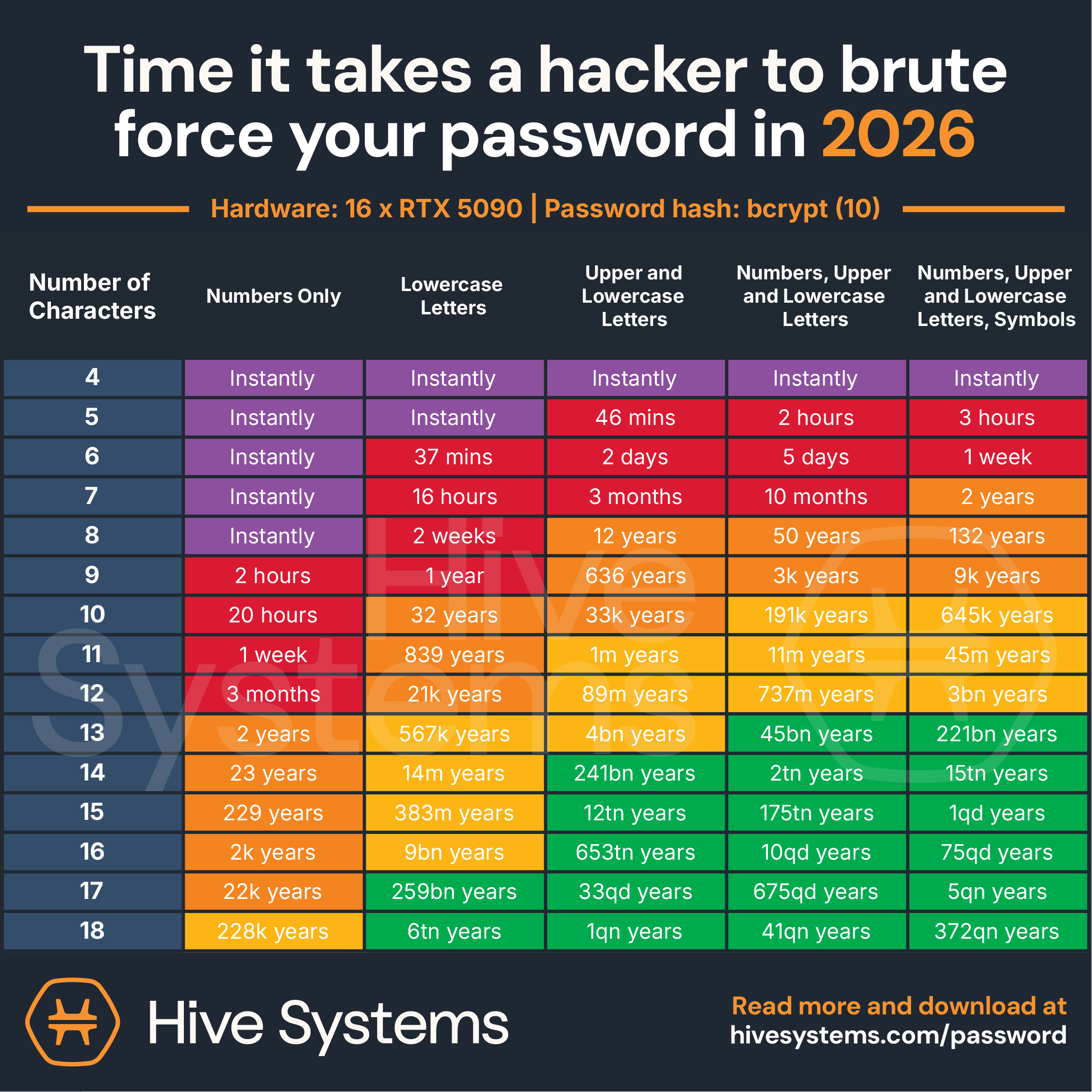
Source: Hive Systems — Are Your Passwords in the Green? (2026 edition).
Even a short password of the “full mix” (numbers, upper, lower, and symbols) takes over a century to crack with this setup — but the crack times get shorter every year as hardware improves, so err on the longer side.
Your password manager can generate these for you automatically. If you need
to type the password by hand, ask it to avoid ambiguous characters such as
O, 0, I, l, and 1.
5.1. What if the account no longer exists?
If the account is gone, just move on. Sometimes it’s worth searching your mailbox for the domain to see what you received from it in the past — but often the domain simply no longer exists, or it was a mailing list where you never created a password in the first place.
6. Update your e-mail address
While you’re in each account, consider changing the e-mail address on file to a unique one per service:
- If you have your own domain, use
[email protected]. - Otherwise, use the plus trick — most providers (like Gmail) let you
append
+somethingto your address, e.g.[email protected].
This makes it easy to spot which service leaked or sold your address, and makes targeted phishing slightly harder.
7. Enable the strongest MFA you can
Finally, add multi-factor authentication to each account. In order of preference:
- Passkeys — the strongest option. Password managers can store passkeys, which is preferable to Google’s built-in passkey solution because they’re portable across devices and ecosystems.
- One-time passwords (OTP) — codes from an authenticator app.
- E-mail — a code emailed to you.
- SMS (Short Message Service) — a code texted to you.
Any MFA is better than no MFA, so if a site only offers SMS, take it — but upgrade to a passkey or an authenticator app wherever you can.
Let me know what you think of this article on twitter @lukahn!